Installing and Configuring Unix(Oracle Solaris X86)
Installing and Configuring Unix(Oracle Solaris X86)
Installing and Configuring
http://www.oracle.com/technetwork/server-storage/solaris/downloads/index.html linkinden Oracle Solaris X86 indirebilirsiniz. (indirebilmek için ücretsiz üye olup giriş yapmanız gerekmektedir.) iso imajı indirip DVD ye yazıyoruz. VMWare ortamında kurulum yapmak için DVD ye yazmaya gerek yok iso dosyasını cdrom sekmesinden gösterebilirsiniz.
Üretim ortamında kurulum yapılıyorsa sunucuların ve SAN’ın firmware ve bios güncellemelerinin yapıldığından emin olmalısınız. Devreye aldıktan sonra sunucuyu kapatma imkanınız olmayabilir.
15 GB Disk ve 2 GB RAM ayırıp. ve CD’ den boot ediyorum.


1. Solaris Interactive (default) seçilir.


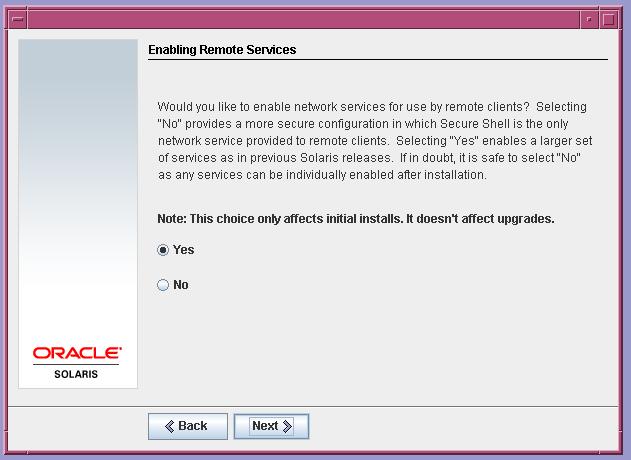


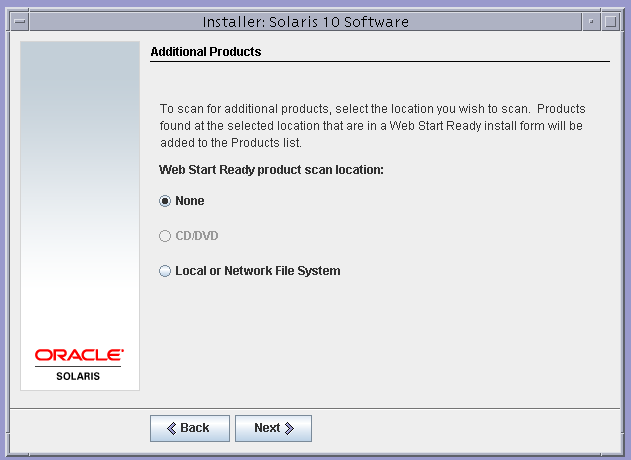


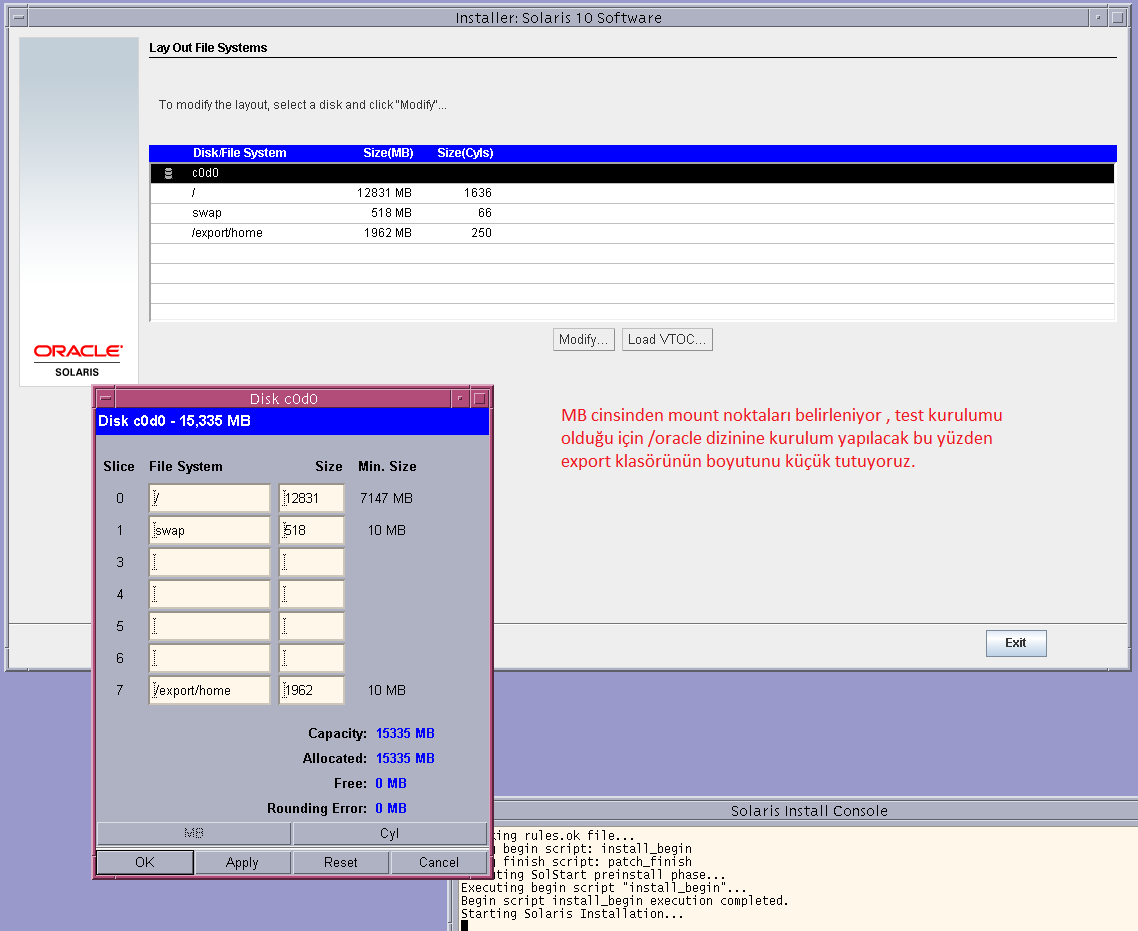


Settings
IP settings
Note: Switching to bash allows use of familiar Linux shortcuts
|
1 |
/sbin/ifconfig -a |
|
1 2 3 4 |
lo0: flags=2001000849<UP,LOOPBACK,RUNNING,MULTICAST,IPv4,VIRTUAL> mtu 8232 index 1 inet 127.0.0.1 netmask ff000000 e1000g0: flags=1000843<UP,BROADCAST,RUNNING,MULTICAST,IPv4> mtu 1500 index 2 inet 192.168.13.130 netmask ffffff00 broadcast 192.168.13.255 |
IP assignment (the name of the ethernet card is e1000g0)
|
1 |
ifconfig e1000g0 192.168.204.20 netmask 255.255.255.0 up |
Assigning the default gateway
|
1 |
route change default 192.168.34.254 1 |
Changed the following file to make the updates permanent
|
1 2 3 4 5 |
/etc/hostname.driver0 (örneğin hostname.e1000g0) /etc/hosts /etc/netmasks /etc/defaultrouter init 6 |
|
1 2 3 |
dladm show-link ifconfig e1000g1 plumb --disable etmek için unplumb ifconfig e1000g1 172.1.1.100 netmask 255.255.255.0 up |
otomatik acilisda dhcp almasi icin
|
1 2 |
touch hostname.e1000g3 touch dhcp.e1000g3 |
vim /etc/nsswitch.conf
|
1 2 |
hosts: files dns svcadm restart network |
Assigning the IP and default gateway with Solaris 11
|
1 2 3 |
ipadm create-addr -T static 10.1.1.95/24 net0/v4 route -p add default 10.1.1.1 dladm show-phys |
To change the hostname, the following files need to be changed:
|
1 2 3 4 5 6 7 |
/etc/hosts /etc/nodename /etc/hostname.xn (xn = network card, i.e. e1000g0) /etc/net/ticlts/hosts /etc/net/ticots/hosts /etc/net/ticotsord/hosts /etc/inet/ipnodes (if this file is present then it should contain a defined hostname) |
Disk Transactions:
|
1 2 3 |
mount mount /dev/dsk/c0d0s7 /export/home format->partition -- volumes can be managed by viewing the paths |
For information:
|
1 |
prtvtoc /dev/dsk/c0d0s0 |
|
1 2 |
df -h df -ht |
For information:
Filesystem size used avail capacity Mounted on
———————————————————————————————————
/dev/dsk/c0d0s0 12G 3.4G 8.8G 28% /
/devices 0K 0K 0K 0% /devices
ctfs 0K 0K 0K 0% /system/contract
proc 0K 0K 0K 0% /proc
mnttab 0K 0K 0K 0% /etc/mnttab
swap 1.5G 560K 1.5G 1% /etc/svc/volatile
objfs 0K 0K 0K 0% /system/object
sharefs 0K 0K 0K 0% /etc/dfs/sharetab
/usr/lib/libc/libc_hwcap1.so.11 2G 3.4G 8.8G 28% /lib/libc.so.1
fd 0K 0K 0K 0% /dev/fd
swap 1.5G 244K 1.5G 1% /tmp
swap 1.5G 32K 1.5G 1% /var/run
/dev/dsk/c0d0s7 1.9G 1.9M 1.8G 1% /export/home
DNS Settings (name resolution)
/etc/resolv.conf dosyasına aşağıdaki formatta internal ve external DNS sunucu ipleri girilir.Eğer yoksa oluşturulur.
|
1 2 3 |
nameserver 192.168.0.1 nameserver 8.8.8.8 svcadm restart network |
Enter the internal and external DNS server IP addresses into /etc/resolv.conf if not already entered.
|
1 2 3 |
nameserver 192.168.0.1 nameserver 8.8.8.8 svcadm restart network |
Services
To get detailed information about services such as: which ones have stopped, at what time and whether other services have been affected as a result.
|
1 |
svcs -x |
Lists the status of all the services
|
1 |
svcs -a |
Getting more information about the inetd service
|
1 2 3 |
svcs inetd STATE STIME FMRI online 21:07:13 svc:/network/inetd:default |
|
1 |
svcs apache2 |
|
1 2 3 4 5 6 7 8 9 10 11 |
Parameter Definitions -a -- lists all the services (including ones that have been deactivated) -d -- lists all connected services -D -- lists the dependent services -l -- lists all information regarding the services -p -- dumps service process information -x -- the status of services -v -x -- to view extra information svcs -d inetd svcs -D multi-user svcs -xv apache2 |
Start the Apache2 service
|
1 |
svcadm enable apache2 |
To view the status
|
1 2 3 |
svcs http STATE STIME FMRI online 11:26:46 svc:/network/http:apache2 |
To view the process ID
|
1 |
svcs -p http |
To end the service
|
1 |
pkill http |
Use the “tail” command to view the contents of log files, the “-10” option dumps the last 10 lines.
|
1 |
tail -10 /var/svc/log/network-http:apache2.log |
Use the scvadm and clear command combination to restore the service.
|
1 |
svcadm clear apache2 |
To check the service
|
1 |
svcs http |
To view the storage space used files and directories within a folder, updated every 2 seconds
|
1 |
while true; do clear; date ; du -ash * ; sleep 2; done |
I/O
|
1 2 3 4 |
# Read bytes by process, dtrace -n 'sysinfo:::readch { @bytes[execname] = sum(arg0); }'# Write bytes by process, dtrace -n 'sysinfo:::writech { @bytes[execname] = sum(arg0); }'# Disk size by process, dtrace -n 'io:::start { printf("%d %s %d",pid,execname,args[0]->b_bcount); }' |
VNC
As an Oracle user
|
1 2 |
export PATH=$PATH:/usr/openwin/bin:/usr/X11/bin vncserver :1 -geometry 1200x800 -alwaysshared |
vim /export/home/.vnc/xstartup
|
1 |
twm & ---> gnome-session & |
To get an OUI (O Universal Install) to a connected VNC session
|
1 2 3 |
DISPLAY=localhost:1 export DISPLAY echo $DISPLAY |